Your Bitrix24 notifications.
Now in WhatsApp.
Keep selected work updates close, even when Bitrix24 is closed. Choose what each employee receives and protect their time with quiet hours.
For Bitrix24 cloud · English interface · Free during the pilot
Choose what deserves a ping.
Manage connected employees inside Bitrix24. Set their notification types, time zone and quiet hours from one workspace.
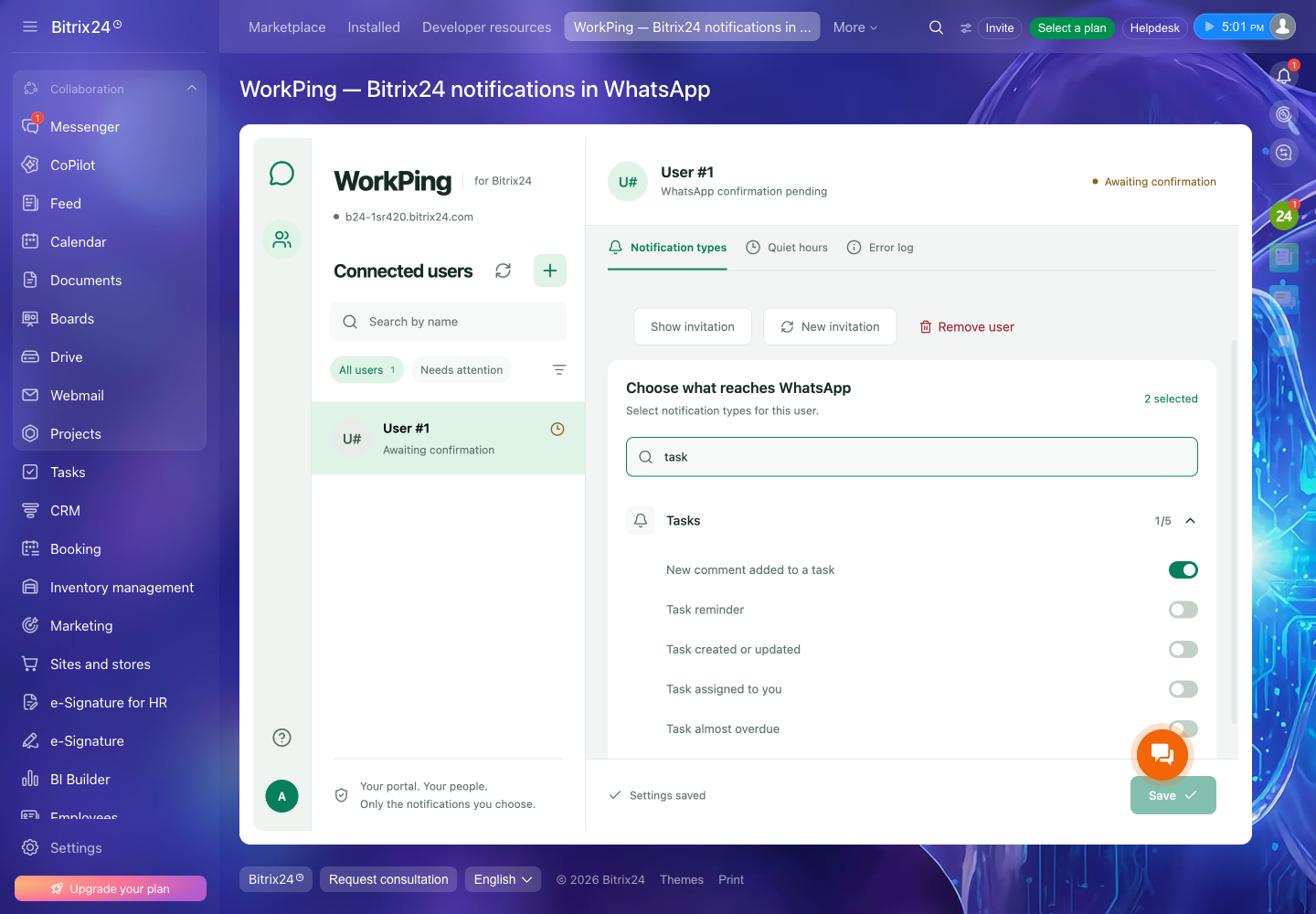
Connected by choice.
- Add an employee
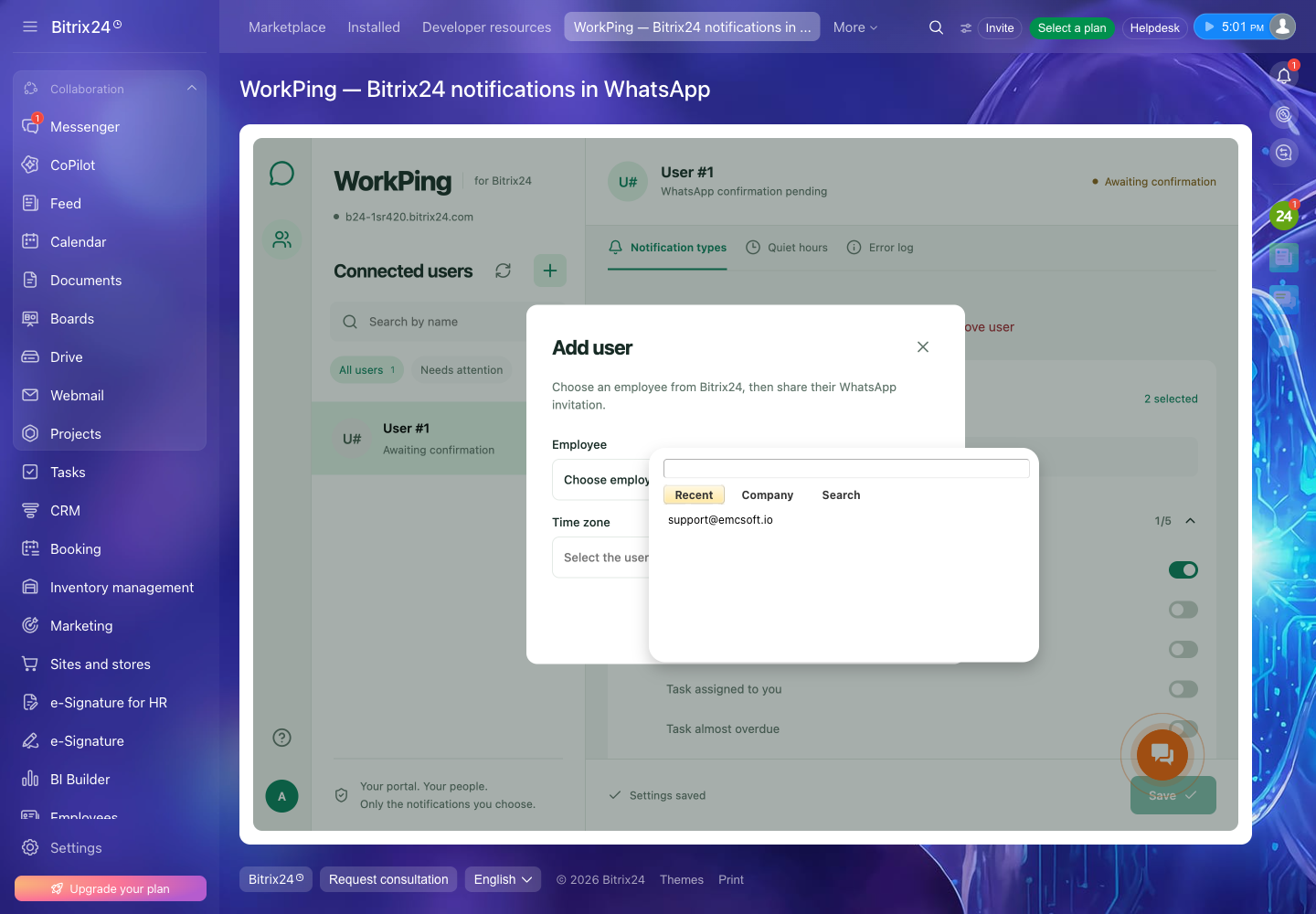
Use the native Bitrix24 employee picker. Confirm the time zone, create an invitation, then choose notification types and quiet hours.
- Confirm in WhatsApp
The employee opens the invitation or scans its QR code and sends the prefilled consent message from their own WhatsApp.
- Open WorkPing in Bitrix24
The same employee opens the application to provide personal access. Notifications start only after both confirmations.
A workspace your team already knows.
Employee selection uses Bitrix24’s own dialog. Administrators manage connections; employees see their own access status.
A few words.
More control.
Use these commands in the WorkPing WhatsApp conversation. Commands apply to all portals connected to your number; each portal’s notifications stay grouped separately.
Confirmed delivery marks the corresponding items as read in Bitrix24. Requests and READ use the notification types enabled by your administrator.
- OK1 … OK168
- Request selected unread notifications from the last 1–168 hours. OK means one hour.
- MORE
- Continue an unfinished notification batch.
- STOP1 … STOP168
- Pause automatic notifications for 1–168 hours. STOP means one hour.
- START
- Resume automatic notifications. Quiet hours still apply.
- READ
- Mark selected unread notifications as read in Bitrix24 without forwarding them.
- UNSUBSCRIBE
- Stop notifications across all portals linked to your WhatsApp number.
Before you connect
What can WorkPing send?
Selected personal notifications, supported chats and task comments available to the connected employee through Bitrix24 APIs. WorkPing does not mirror your entire account. Availability depends on permissions, notification types and the history provided by Bitrix24.
Does everyone need a Twilio account?
No. WorkPing uses an EMCsoft-managed WhatsApp service number. Each employee needs a WhatsApp account and must confirm the personal invitation.
What does it cost?
The current pilot has no application fee and no in-app billing. EMCsoft pays the service’s Twilio and hosting costs. Your Bitrix24 plan and internet costs are separate. Future pricing, if introduced, will be communicated before a paid agreement is required.
Can I reply to a Bitrix24 conversation from WhatsApp?
WorkPing delivers notifications and accepts its control commands. It does not post replies into Bitrix24 chats or create CRM records from WhatsApp.
Can I move from a local installation?
Remove the local WorkPing installation before installing the Market version. Configure connections again and ask employees to confirm their access. Existing connections are not migrated automatically.
Bring the right updates with you.
Install as a Bitrix24 administrator. Connect employees one at a time, with their consent.
Open the setup guide